How do I start and stop my work day?
Click Start work in the Timerfly app when you begin, and Stop work when you finish. Nothing is recorded outside your work day.
- 1Click the Timerfly icon (menu bar on a Mac, next to the clock on Windows).
- 2Click Start work.
- 3At the end of the day, click Stop work and confirm.
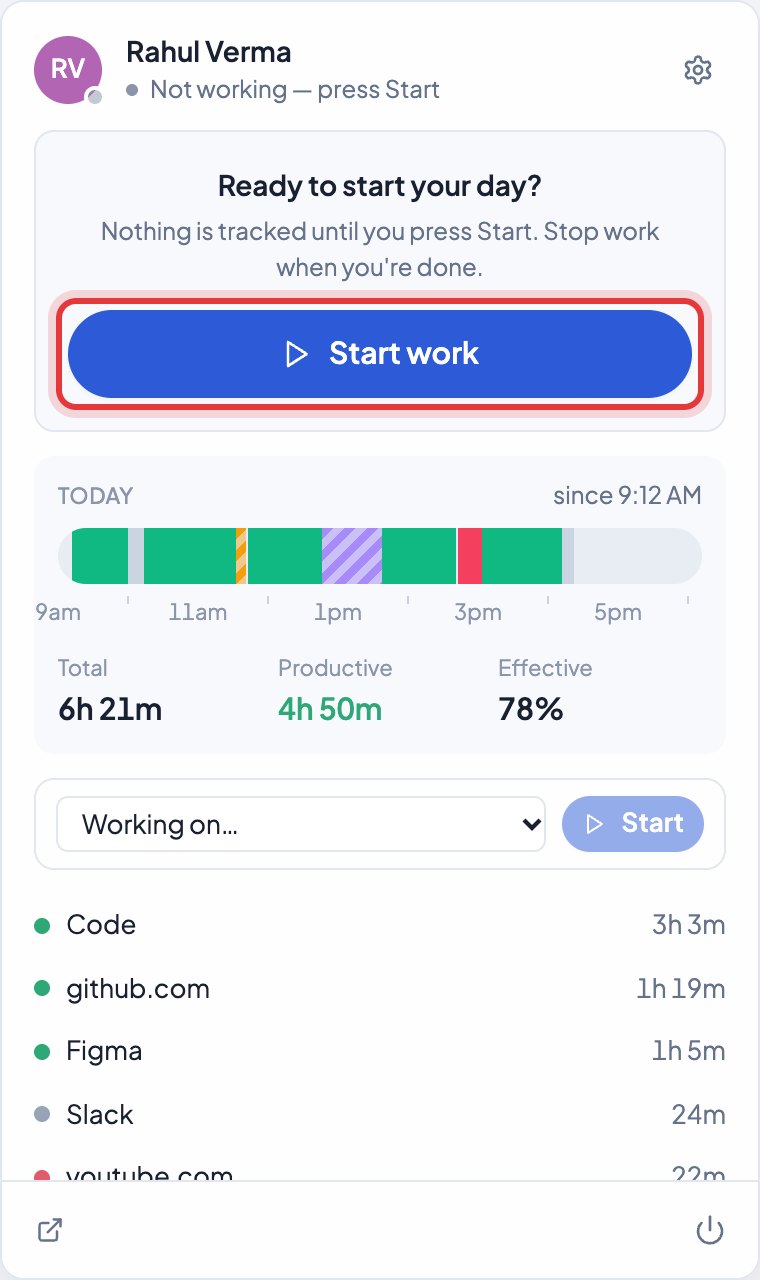
Your company may have set the day to start by itself instead: then your first keyboard or mouse use during work hours starts it, and a notification tells you so. If you forget to press Start, the app reminds you.
Still stuck? We’re happy to help.
Ask usMore on the desktop app
- Does Timerfly start tracking by itself, or do I press Start?
- How do breaks work?
- Can I pause tracking for something personal?
- When does time count as idle?
- What do Total, Productive and Effective in the app mean?
- What happens at the end of my shift?
- What if the internet goes off?
- How does the app update?
- Does the app start when the computer starts?
- I use two computers. Is my time counted twice?
- How do I sign out of the desktop app, or quit it?
- How do I record time on a project from the app?
New to Timerfly?
Try every feature free for 14 days.