Attendance + productivity for teams at computers
Know who’s working.Without chasing anyone.
Attendance, late marks and productivity, straight from your team’s computers.
- Late and absent marked for you
- Who’s working, idle or on a break, live
- Windows and Mac, set up in minutes
14-day free trial · No card needed · Every feature included
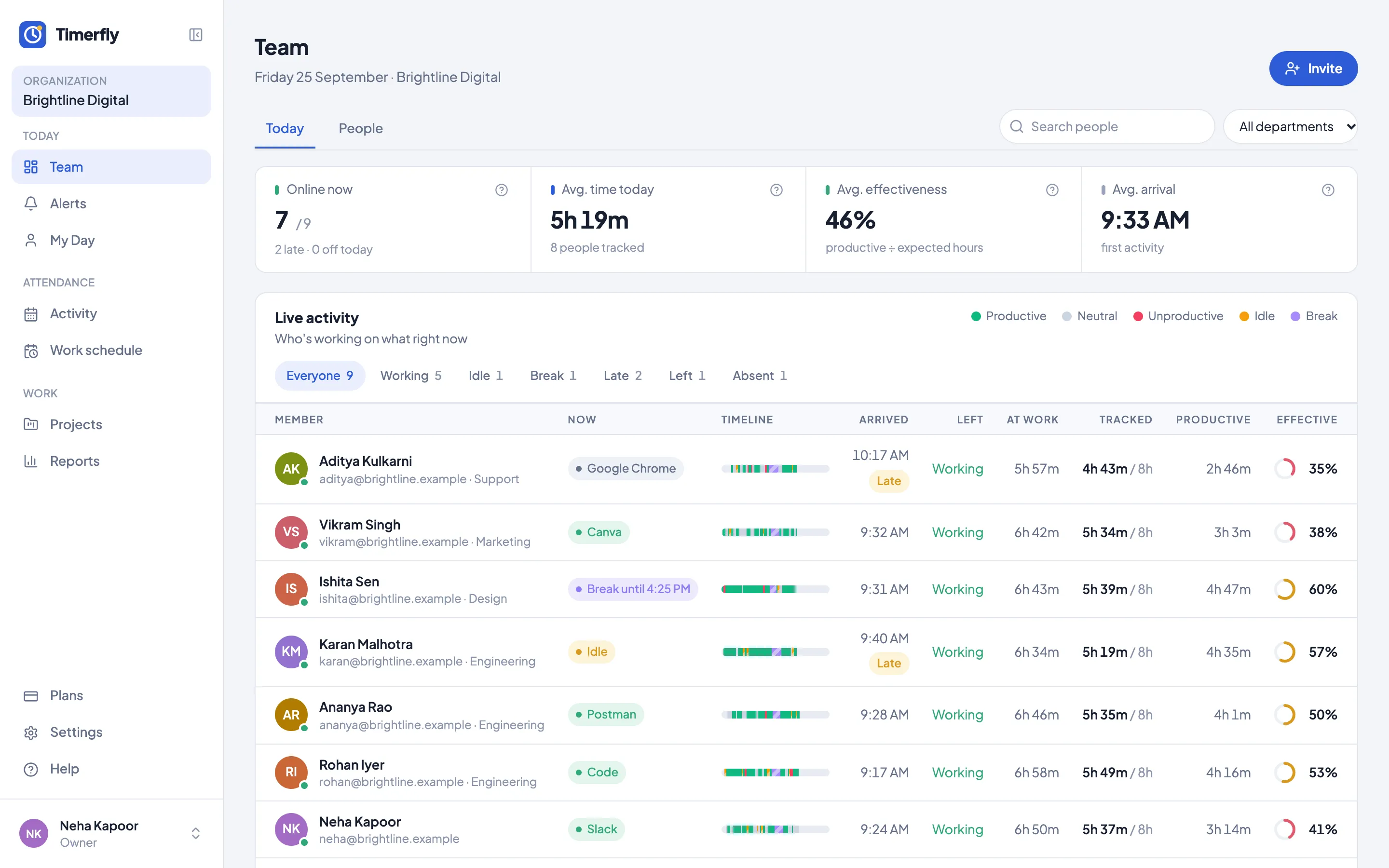
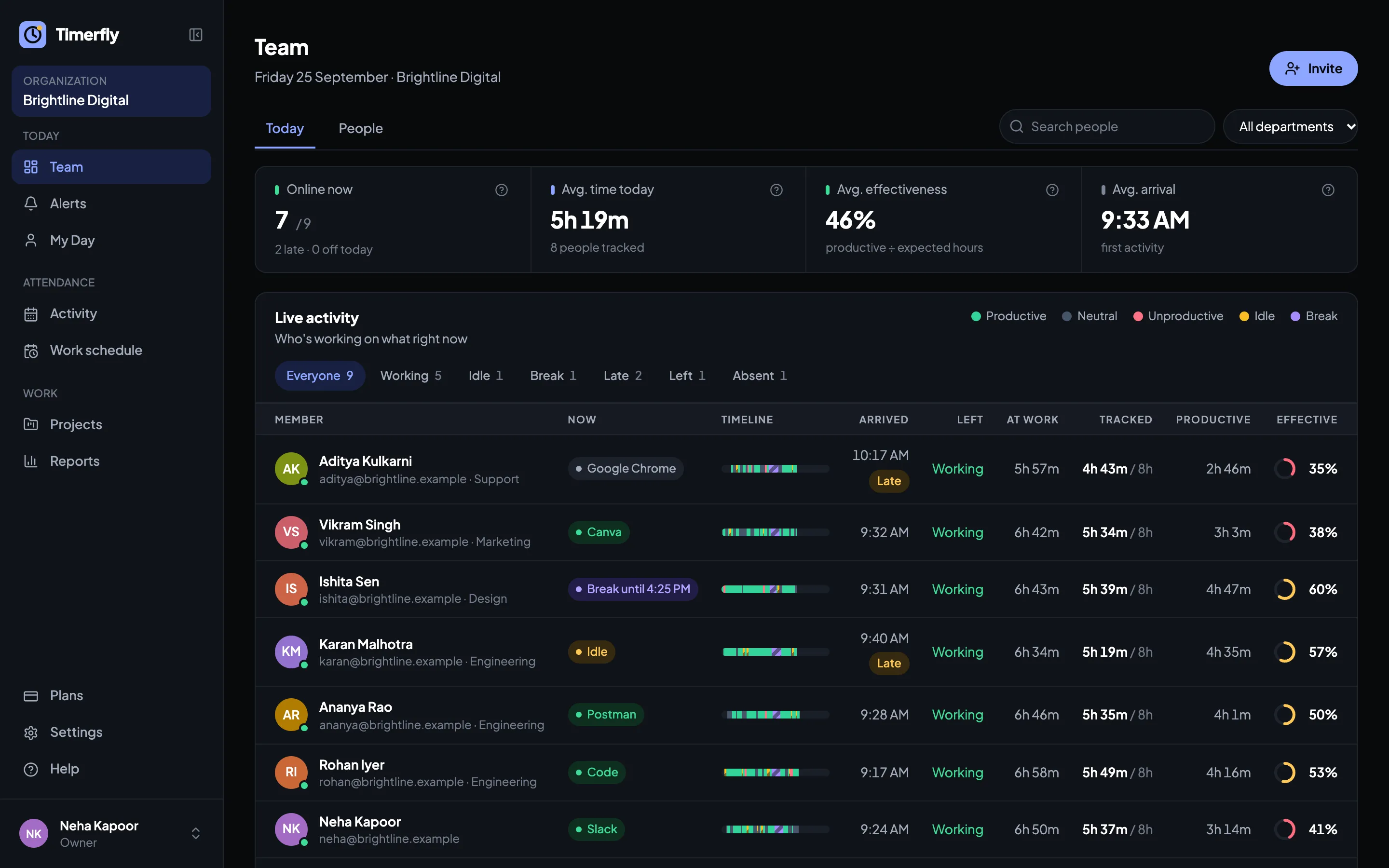
Is my team actually working?
Who’s in, idle or on a break, and in which app. Live, for everyone.
Attendance you can trust
Late, left early and absent, marked from the computer against each shift.
Proof for your clients
Hours by project, in Excel or as a link your client can open.
What you get
Everything the day needs, nothing to fill in
Your team installs a small app. Their work day starts by itself when they sit down, and everything else is recorded for them. Every feature is in the 14-day trial.
- Automatic time tracking
- Work starts by itself
- Live team dashboard
- Personal dashboard
- Attendance & late marks
- Shift scheduling
- Rota in Excel & PDF
- Leave & absence calendar
- Offline time & meetings
- App & website tracking
- Productivity rules
- Rules per department
- Idle detection
- End-of-shift notice
- Breaks & private time
- Screenshots, optional
- Screenshot blur
- Window titles, optional
- Reports
- Excel export
- Daily & weekly report emails
- Alerts in Slack, Teams & Telegram
- API & webhooks
- Zapier, Make & n8n
- Project & task timers
- Client report links
- Two computers, counted once
- Two-step sign-in
- Office-network-only sign-in
- Windows & Mac apps
Every person’s day
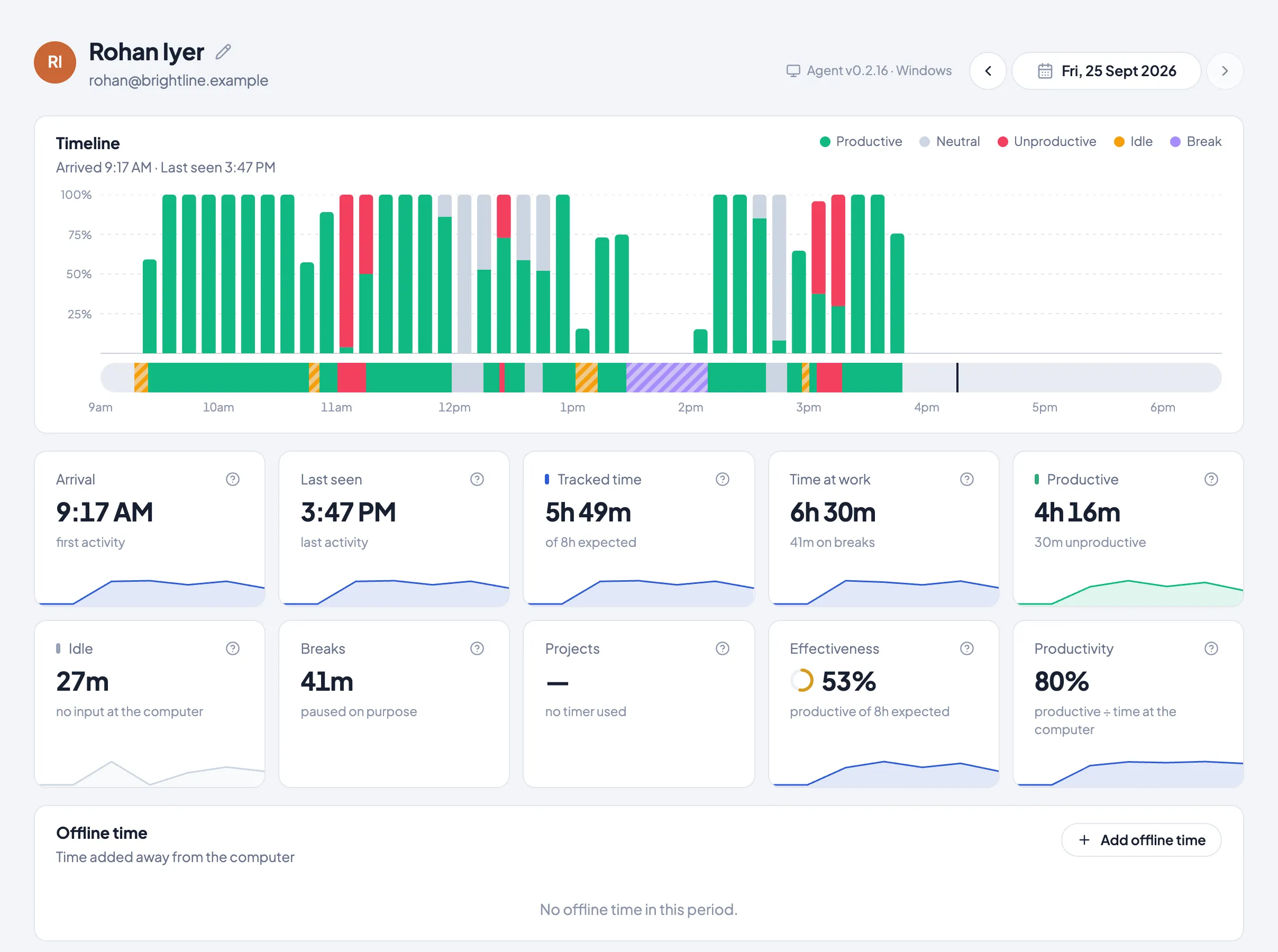
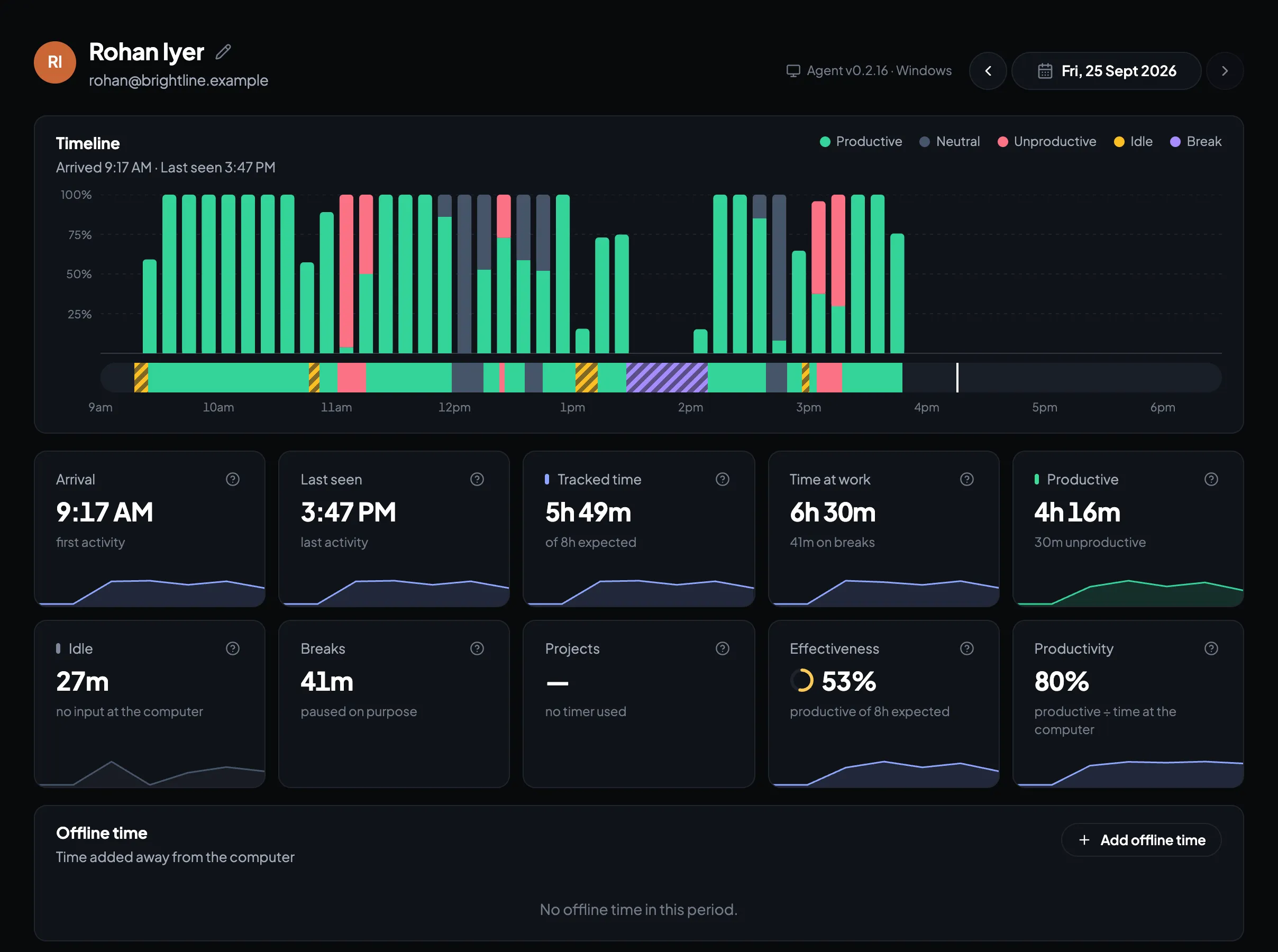
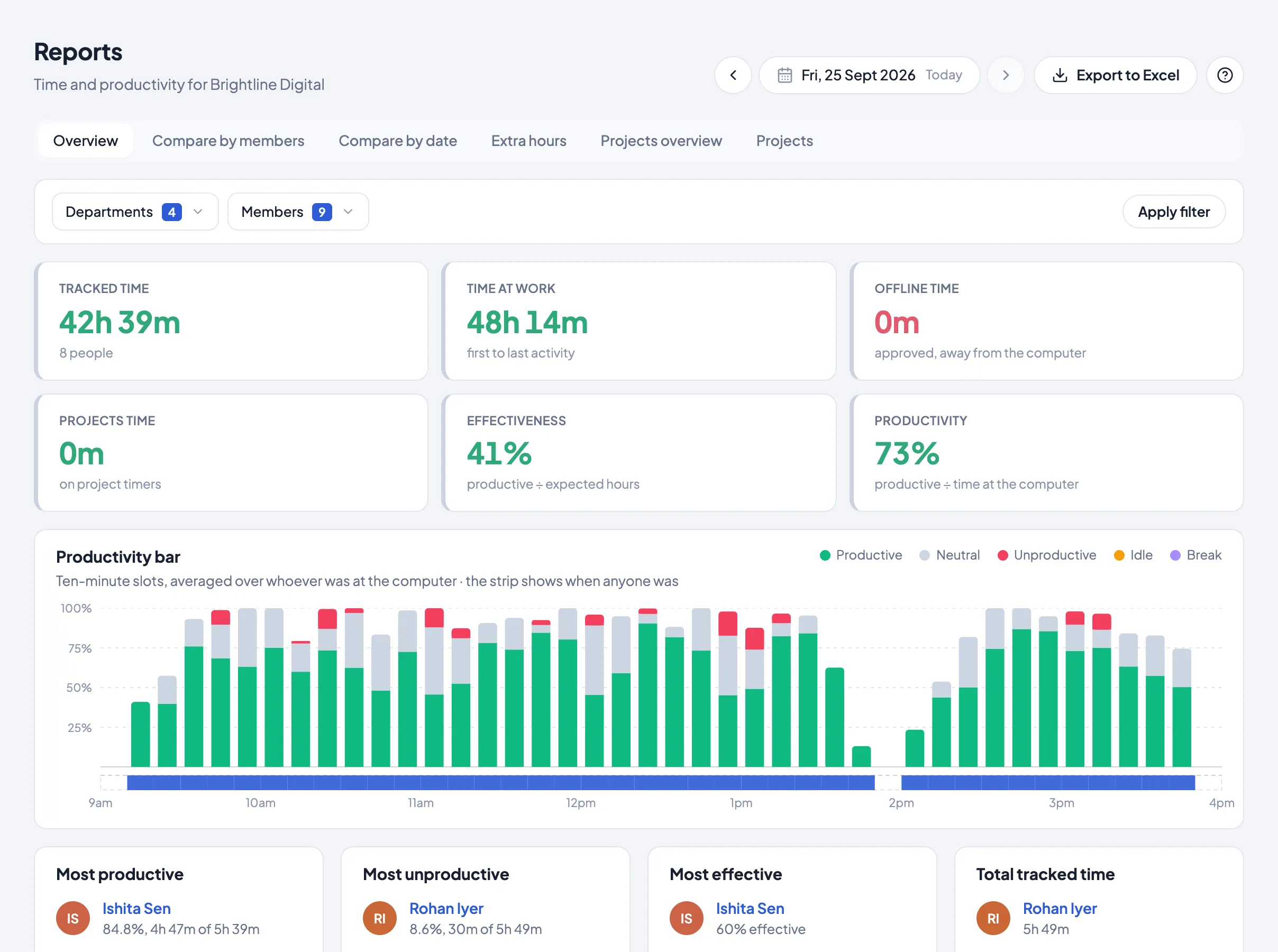
See exactly how the day went
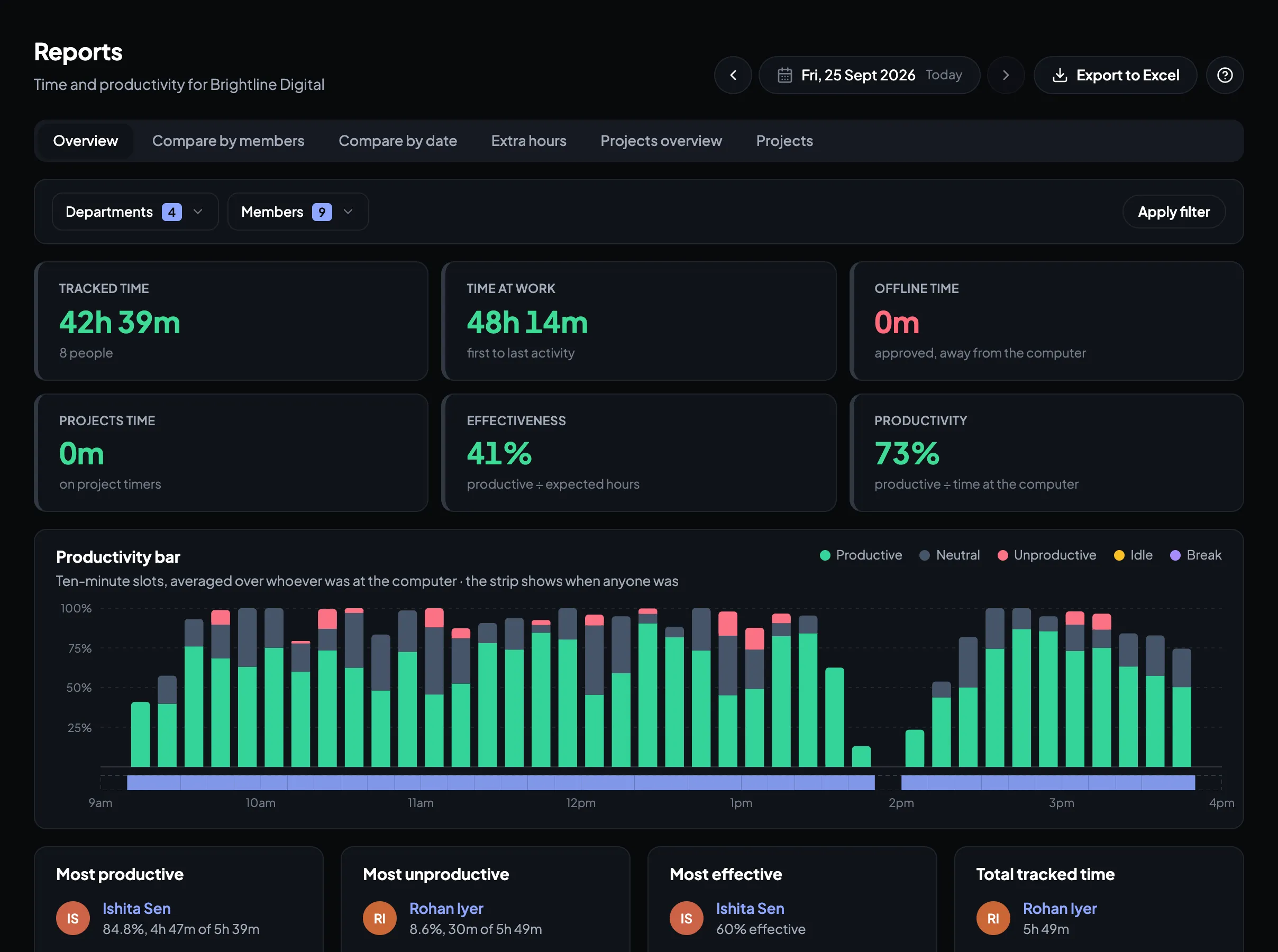
A ten-minute bar for the whole day: productive, neutral and unproductive time, idle spells and breaks. Click any stretch to see the apps and websites behind it.
- Arrival, last seen and time at work
- Idle and breaks kept apart from work
- Effectiveness against the day’s expected hours
Reports
The team’s numbers, without a spreadsheet
Pick a day, a week or a month. See tracked time, effectiveness and productivity for everyone, who stood out, and which apps took the time. Export any of it to Excel.
- Compare people, departments and dates
- Most productive and most distracted, at a glance
- Extra hours and project time
Attendance
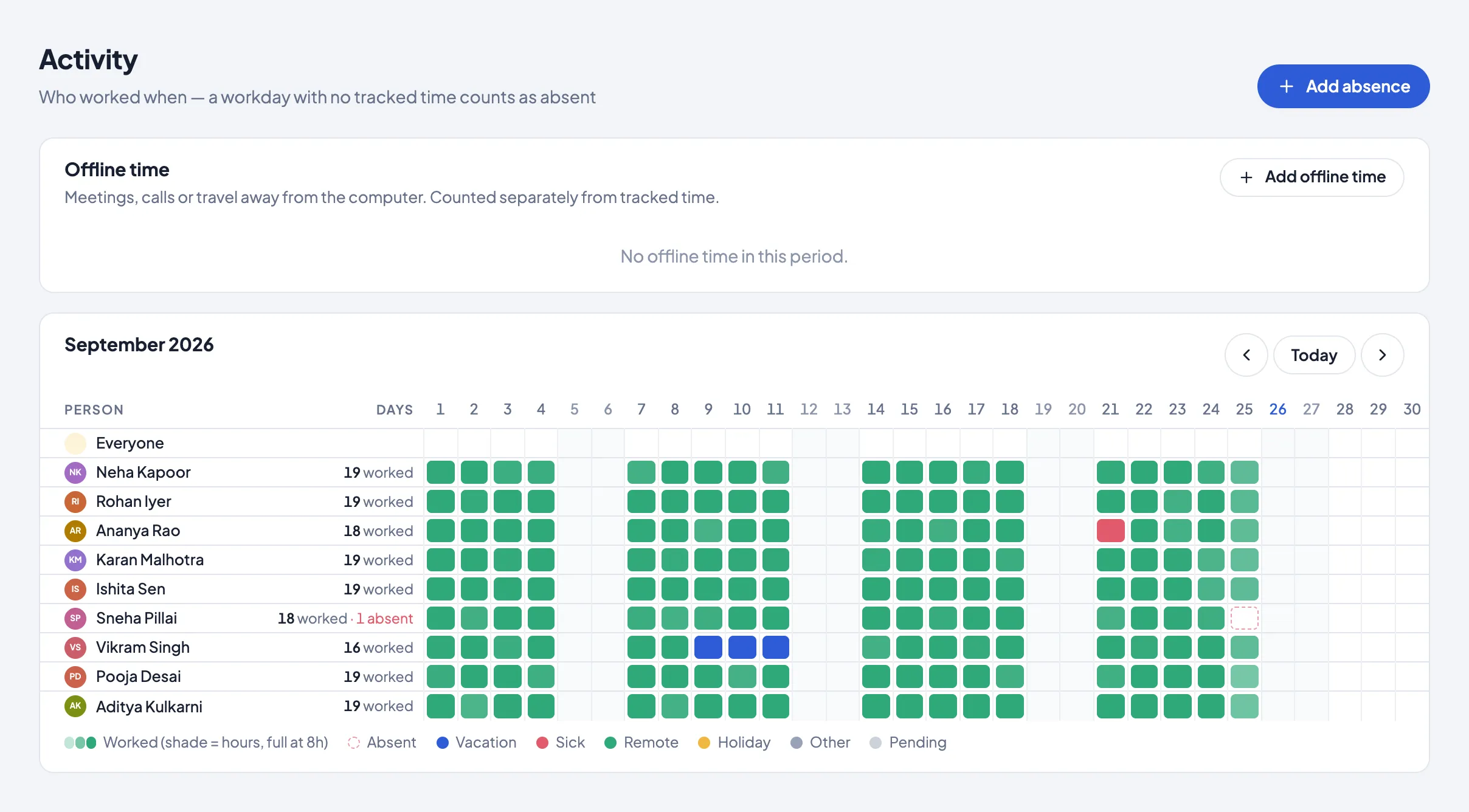
The month’s attendance, ready for payroll
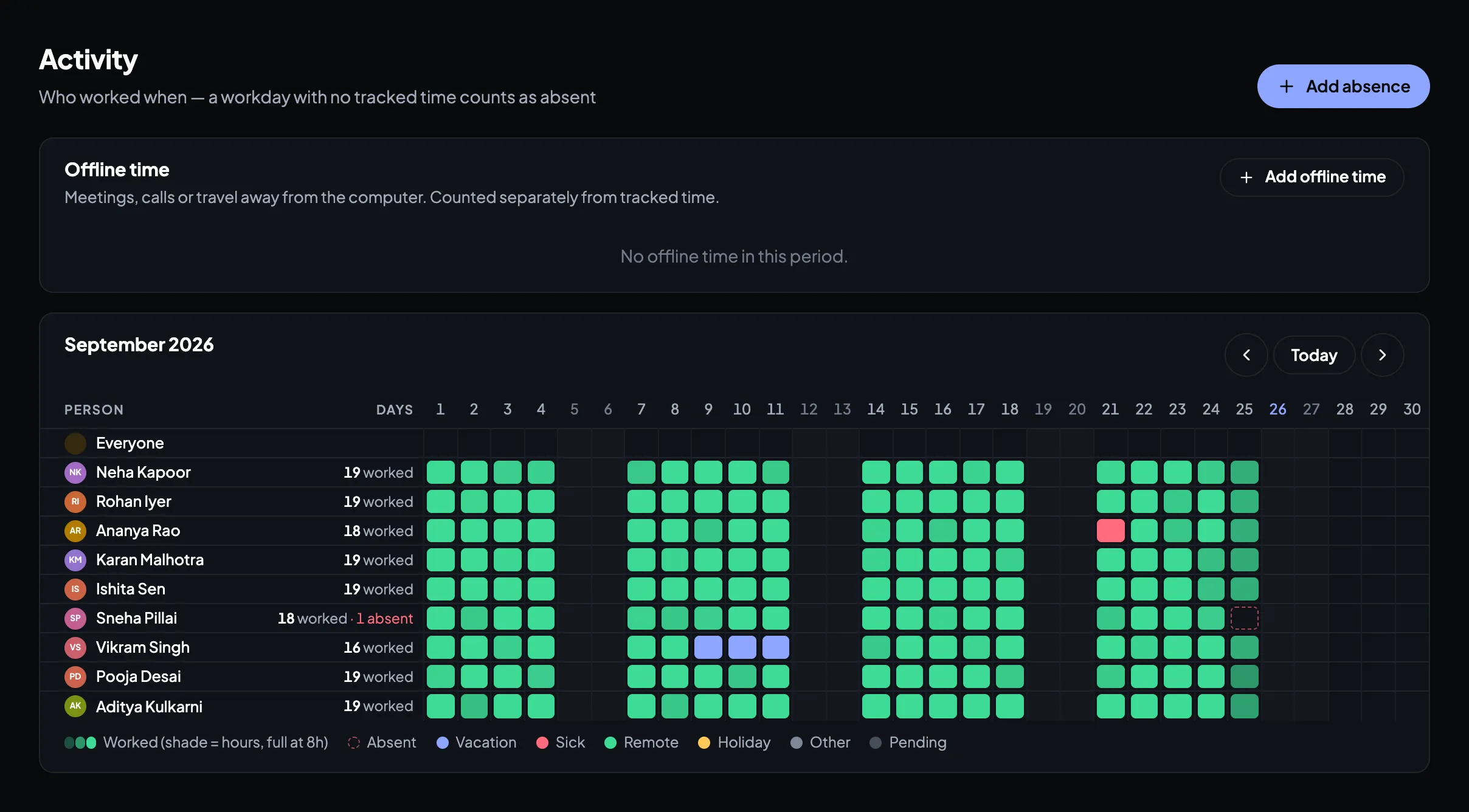
Every person, every day: worked, absent, on leave or sick. Late marks and leaving early come from their own schedule or shift, so there’s nothing to argue about.
- Leave and sick days on the same calendar
- Days worked per person for salary
- Shifts, including nights
How it works
Up and running before your next chai
About 10 minutes from sign-up to your whole team on one page. No IT person needed.
-
1
Sign up
Create your company. No card, no call with sales.
1 minute -
2
Invite your team
By email, or copy the invite link and send it on WhatsApp.
2 minutes -
3
They install the app
Windows or Mac. From then on the day starts by itself when they sit down, and records itself.
5 minutes
Stuck anywhere? See the setup guide
Fair to your team
Built to be trusted by the people it tracks
Tracking works when employees know exactly what it sees. Timerfly is open about it.
- Never records what anyone typesOnly that there was keyboard or mouse input, to tell active time from idle.
- Breaks and private timeOne click in the app pauses tracking. Managers see only that it was a break or private.
- Everyone sees their own dayEmployees get their own timeline, reports and screenshots, and nobody else’s.
- Screenshots off by defaultYour choice to turn on, with blur for a department or a person.
From ₹159 per person a month
Paid yearly, plus GST. Try every feature free for 14 days first. No card needed.
Questions owners ask first
What does Timerfly record?
Which app and website is in use and for how long, window titles, and whether the computer is idle — only during the work day. Screenshots only if your company turns them on.
It never records what you type. It only notices that there was keyboard or mouse use, to tell active time from idle time.
Nothing is recorded outside the work day, during breaks, or in private time.
What can my manager see? What can I see?
Owners and admins see everyone. A manager sees only their departments. An employee sees only their own time.
Owners and admins see everyone’s time, apps, attendance and (if turned on) screenshots.
A department manager sees the same, but only for the people in the departments they manage — no one else, and no Settings or Plans.
Employees see their own day, reports and screenshots. They also see their department’s work schedule and which days colleagues worked, were absent or away, but never anyone else’s hours, apps, screenshots or reasons for leave.
Admins choose how much of the schedule and of who’s away employees see: only their own, their department, or everyone. See “Can I choose what employees see of each other?”.
Windows says "Windows protected your PC" when I install. Is it safe?
Yes. Windows shows this for new apps it hasn’t seen on many computers yet.
On a Mac, if it says the app can’t be checked: open System Settings → Privacy & Security, scroll down and click Open Anyway.
What happens when the trial ends?
The 14-day trial has every feature. After it, everything keeps working for 3 more days; then the workspace pauses until you choose a plan.
Nothing is deleted while paused, and the desktop apps keep recording time, so no days are missing when you continue.