Features
Everything an owner needs to know about the workday
Every feature below is in the 14-day trial.
Today
See the whole team at a glance
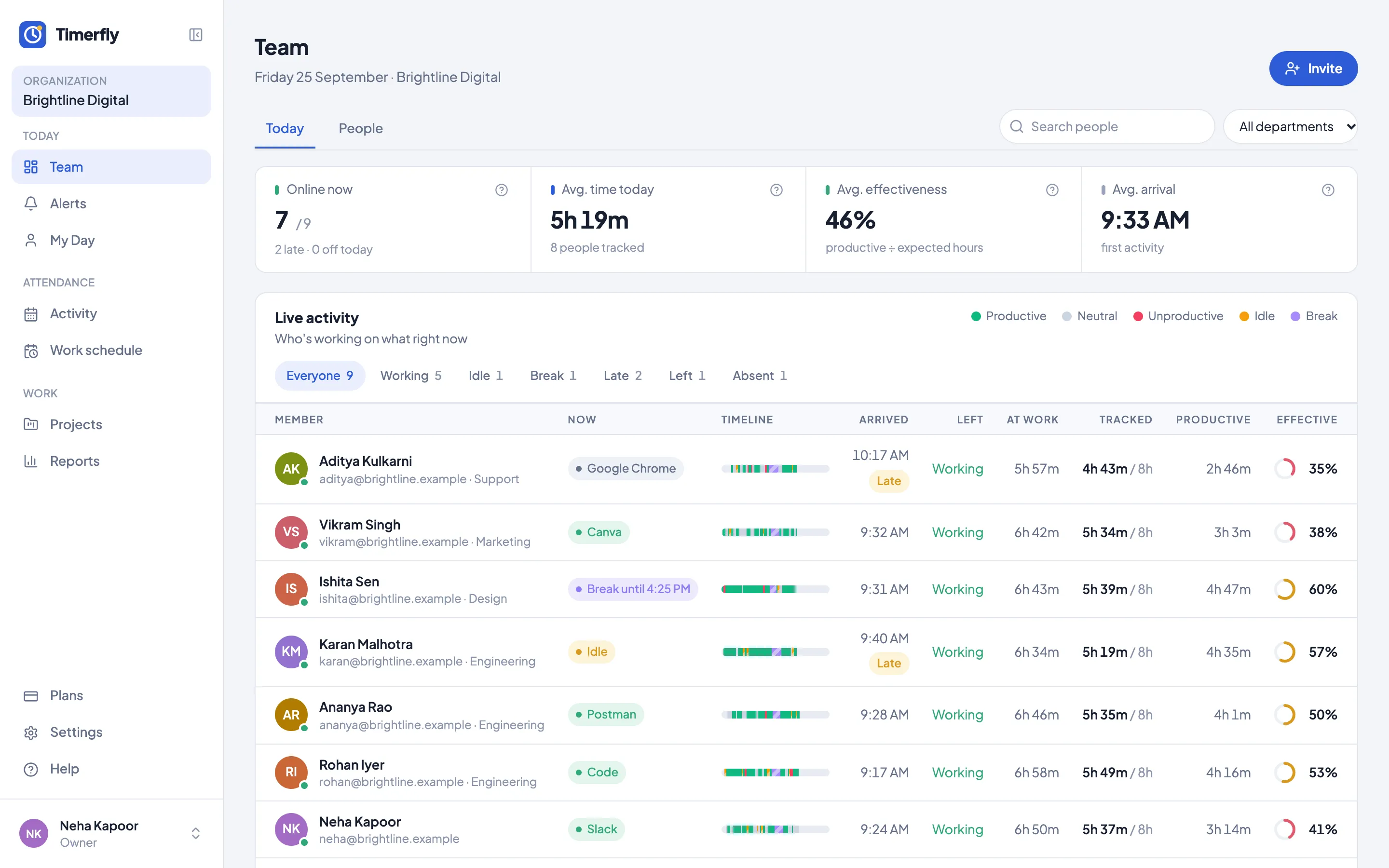
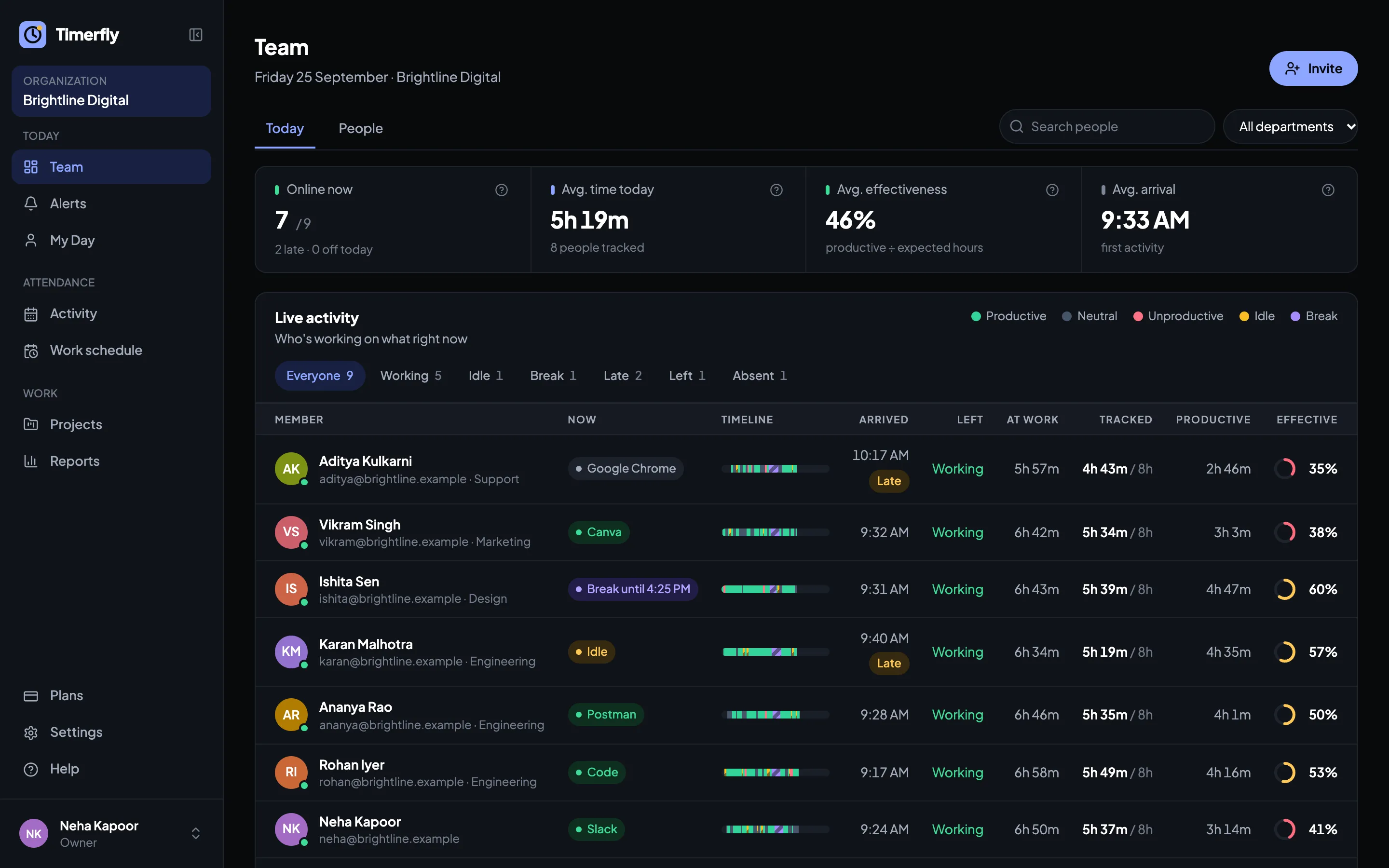
The Team page answers "who is working right now?" without a single message.
Live status
Working (and in which app), idle, screen locked, on a break, or off. Updated every minute.
Calls aren’t idle
Listening on Zoom, Teams or Google Meet without touching the keyboard still counts as work, up to 3 hours. You can switch it off.
Today’s numbers
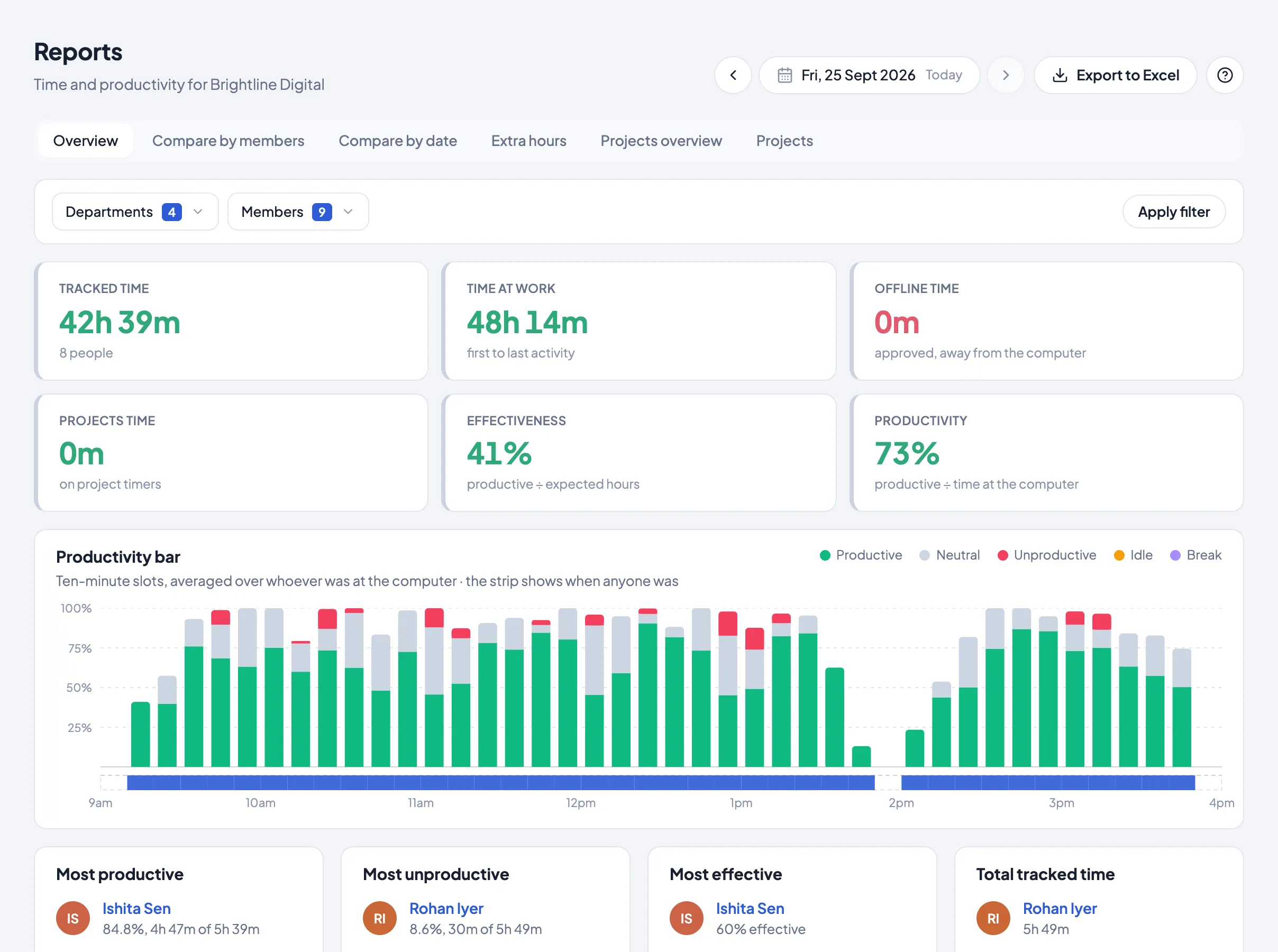
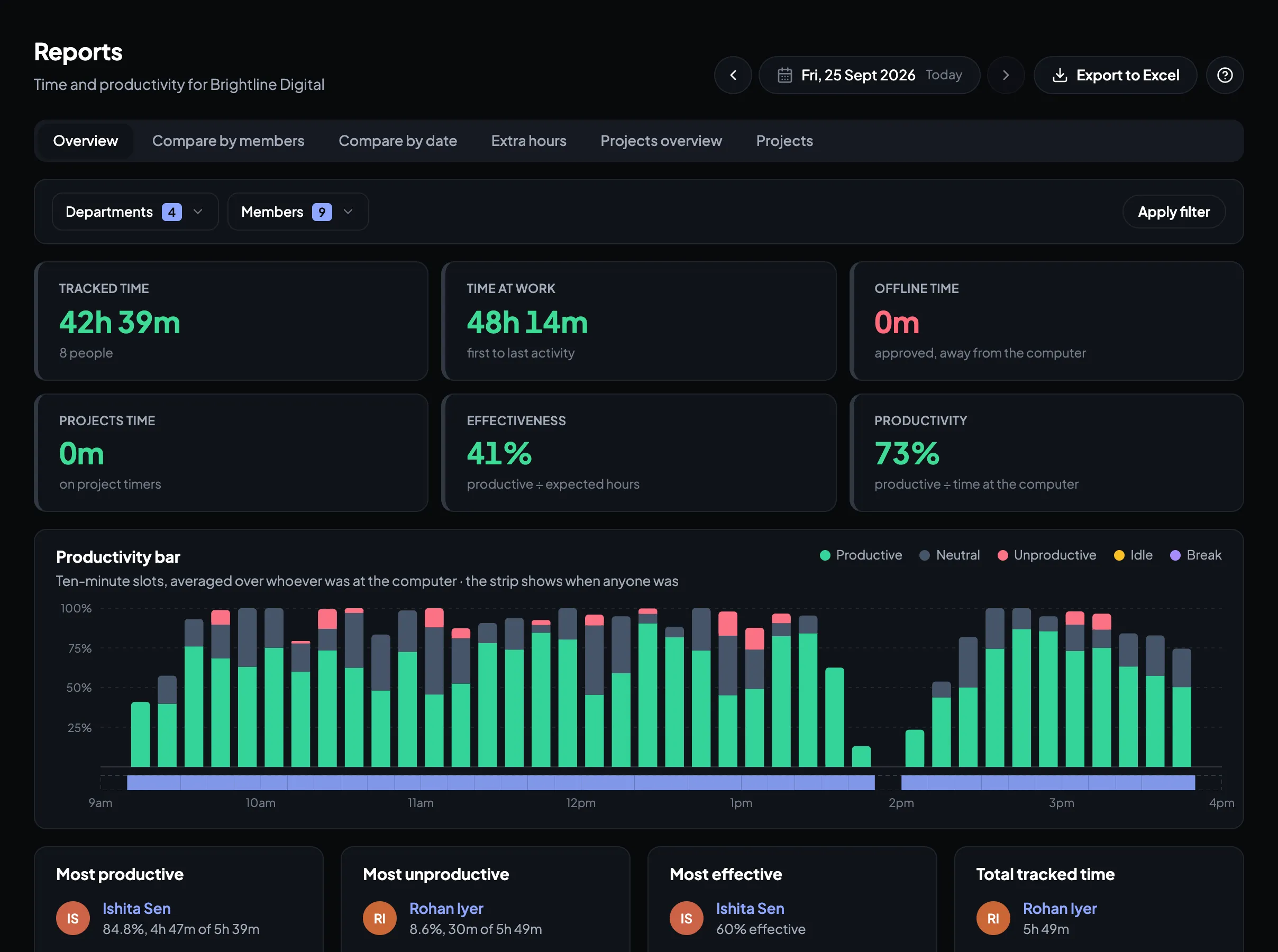
Arrival, leaving time, hours at work, tracked, productive time and effectiveness for everyone.
A timeline per person
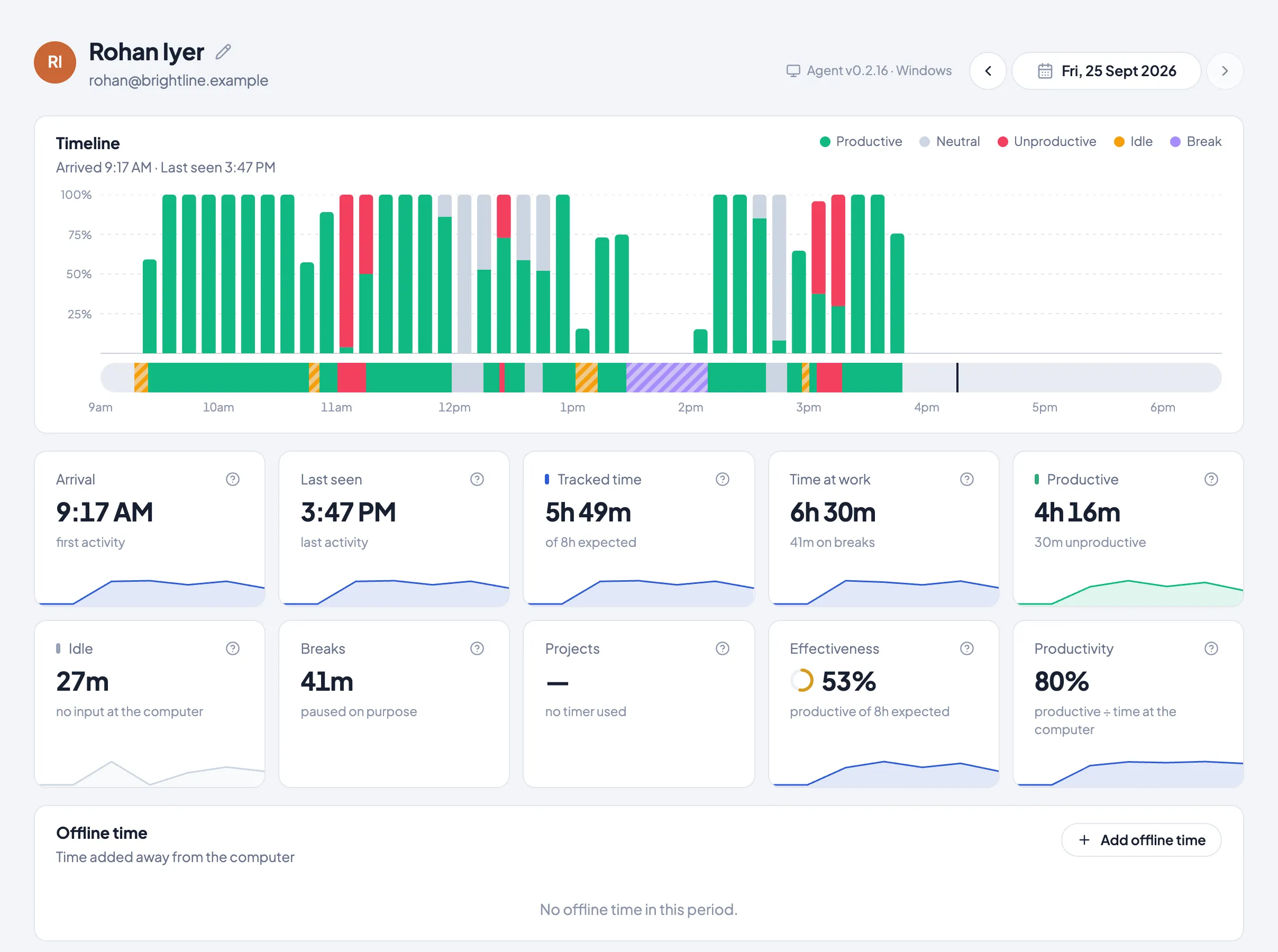
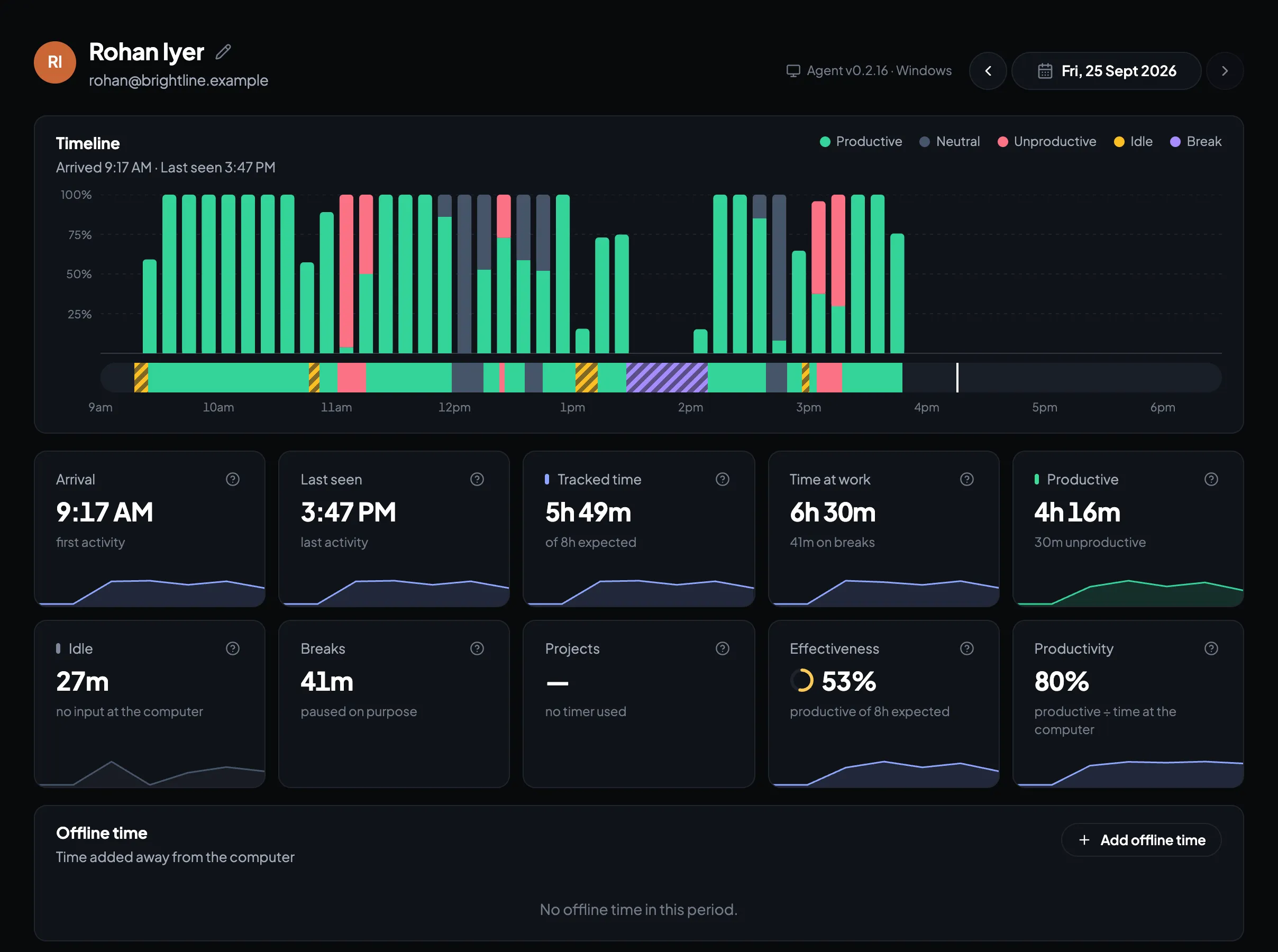
The day as a coloured bar: productive, neutral, unproductive, idle and breaks.
Two computers, counted once
Someone signed in on a laptop and a desktop: every minute counts once, and you see it.
Attendance
Attendance that needs no register
Arrival and leaving come from the computer, not from memory.
Late, left early, absent
Marked against each person’s schedule, with grace minutes you choose.
Shifts and rota
Day and night shifts (even past midnight), assigned by person and by day. Copy last week in one click, or clear a week and start again. Changes wait for Save, so a stray tap changes nothing.
Plan in Excel, share as PDF
Download the week as an Excel file, edit it, upload it back: you see every change before it’s saved. Or download it as a PDF for WhatsApp or the notice board, for all departments or the ones you pick.
Shift swaps and change requests
Employees ask for a day off, another shift or a swap with a colleague; the colleague agrees, the manager approves, and the schedule updates itself.
Everyone sees their team’s week
Employees see their department’s shifts and who’s away, so they know who’s in when. Or everyone’s, or only their own: you choose. Never anyone else’s hours or reasons for leave.
Leave and offline time
Leave on the calendar — whole days, first or second half, or a few hours of short leave; meetings and field work added as offline time, approved by a manager.
Managers see their own team
Make a team lead the manager of Sales or Support: they see, approve and get alerts for those people only. No Settings, no other departments. Let them plan their team’s shifts, or keep the schedule view-only for them.
Activity calendar
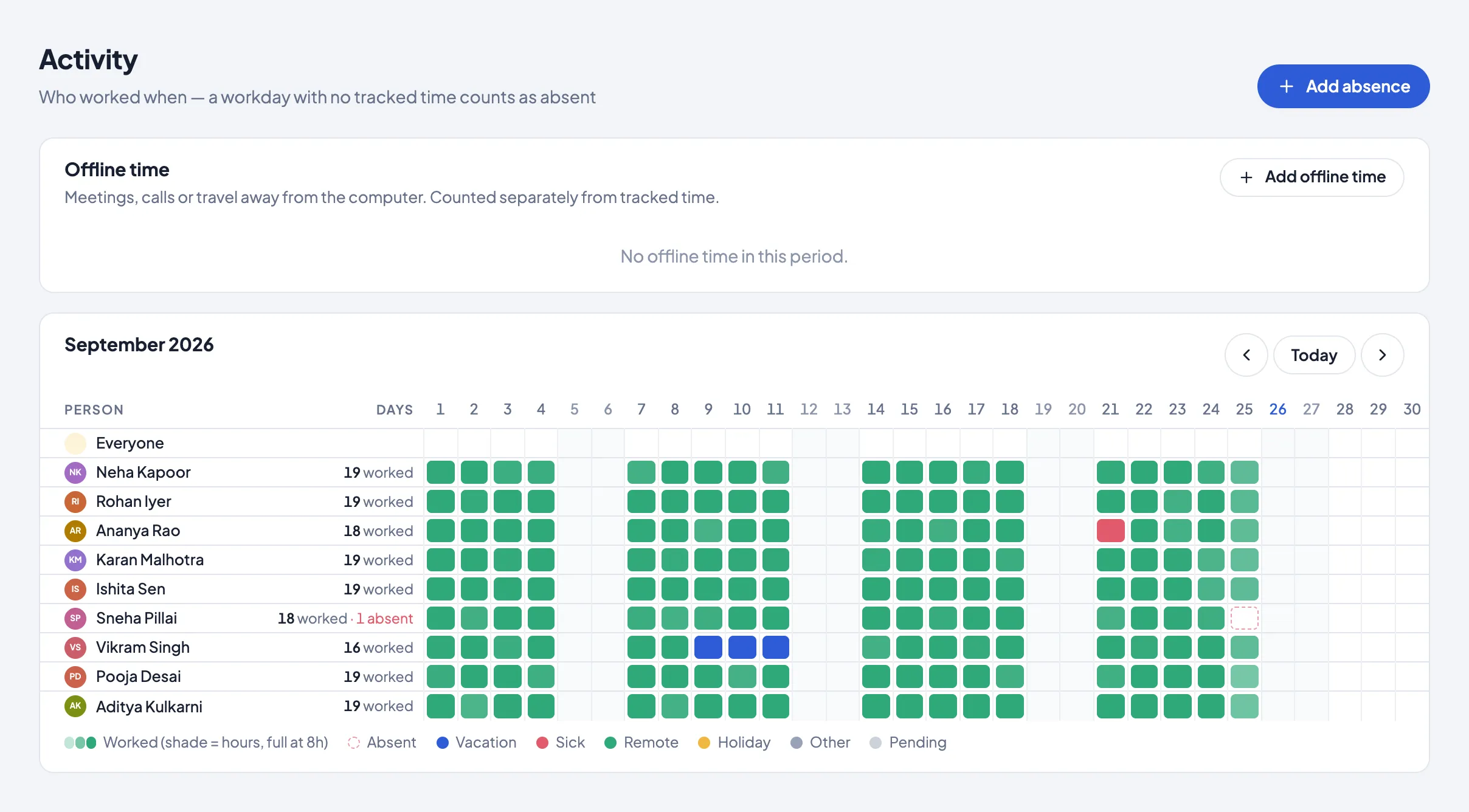
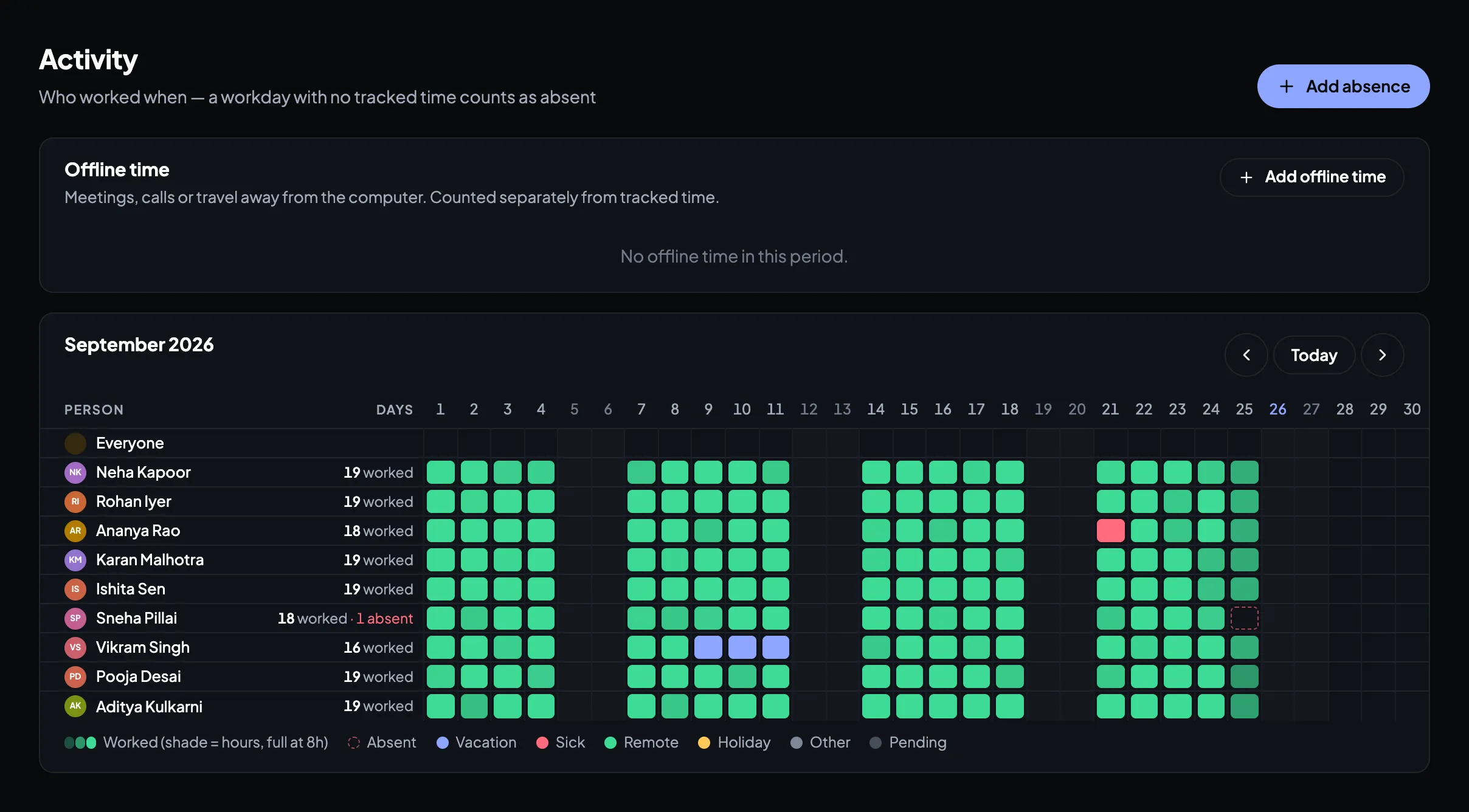
A month per person at a glance: present, late, absent, on leave.
Payroll-ready every month
One click on Activity gives an Excel for payroll: paid days, loss of pay, leave by type, late marks and overtime, on your own pay dates (26th to 25th works too). Ready for Tally or greytHR.
Office or remote, automatically
Add your office’s internet address, and every day shows who worked from the office and who worked remotely. No check-ins, no location tracking (Business).
Productivity
Productive time, measured fairly
Every app and website counts as productive, neutral or unproductive. You decide which.
A ready list to start
Work tools productive; YouTube, Netflix, Instagram and the like unproductive. Change any of it.
Rules per department
YouTube can be work for Marketing and not for Accounts.
Websites, not just browsers
Rules for youtube.com or docs.google.com, whichever browser it’s open in.
Effectiveness and productivity
Productive time against the day’s expected hours, and against time at the computer.
The desktop app
A small app that nobody has to remember
For Windows and Mac. It records the work day, and stays out of the way.
Work starts by itself
The first keyboard or mouse use in someone’s work hours starts their day, with a notification, so nobody forgets to start. Prefer a Start work button? Choose it in Settings; the app then reminds anyone who forgets.
End of the shift
At the end of their shift, anyone still working is told that more time counts as overtime, and Stop work ends the day.
Breaks and private time
Timed breaks with a reminder when they end, counted in full even if the computer sleeps. Private time records nothing at all.
Works offline
No internet? Time is saved on the computer and sent when the connection is back.
Screenshots
Screenshots, only if you want them
Off unless you turn them on. Employees see their own.
Every few minutes
Every 5 minutes or less often on every plan; every 2 or 3 minutes on Business. Taken only while the person is working, never during breaks or private time.
Blur where it matters
For everyone, one department, or one person.
Settings per department or person
Screenshots on or off, how often, and idle time: the company’s by default, different for a department or one person where you need it (Business).
Kept by plan
45 days, 90 days or 6 months, then deleted automatically.
Alerts and reports
Told when it matters, summarised when it doesn’t
Choose the alerts you want and where each one goes.
Alerts
Late start, idle too long, a long break or too much break time, too much unproductive time, overtime, a computer that stopped reporting, and start/stop of work.
Slack, Teams, Google Chat, Telegram, email
Pick per alert: say, idle alerts only in the managers’ Teams channel.
Report emails
A daily, weekly or monthly summary at 9 AM, per person, for the team or a manager’s departments.
Excel export
Any report, per person, team or project, in one click.
Projects
Hours your clients can check
Time by project and task, for billing and for proof.
Timers from the app
Start a project or task timer from the desktop app or the web.
Client report links
Share a project’s hours as a link; revoke it any time.
Integrations & API
Connects to the tools you already use
Alerts in your team chat, attendance in your payroll sheet, and your data in any other system.
Team chat
Alerts in Slack, Microsoft Teams, Google Chat or Telegram within a minute, with a link to the person’s day.
Zapier, Make and n8n
Timerfly’s events into thousands of apps without code: a Google Sheets row per arrival, a CRM note per approved leave (Business).
REST API
People, attendance per day, hours, apps, projects, time entries and leave as JSON for your CRM, ERP or BI dashboards. Read-only keys you can revoke (Business).
Signed webhooks
An event the moment someone starts work, an alert fires, a timer stops or leave is decided — retried if your system is down (Business).
Security
Your data, locked down
Each company’s data is kept apart from every other’s, down to the database.
Two-step sign-in
A code from an authenticator app, for the web and the desktop app.
Office network only
Allow sign-in only from your office IP addresses (Business).
Sessions you control
See where you’re signed in and sign out other devices.
No keystrokes, ever
Timerfly notices that there was input, never what was typed.
Security and your data → · What your team sees, and never sees →
Try it on your own team
14 days, every feature, no card.
Start free trial