How do breaks work?
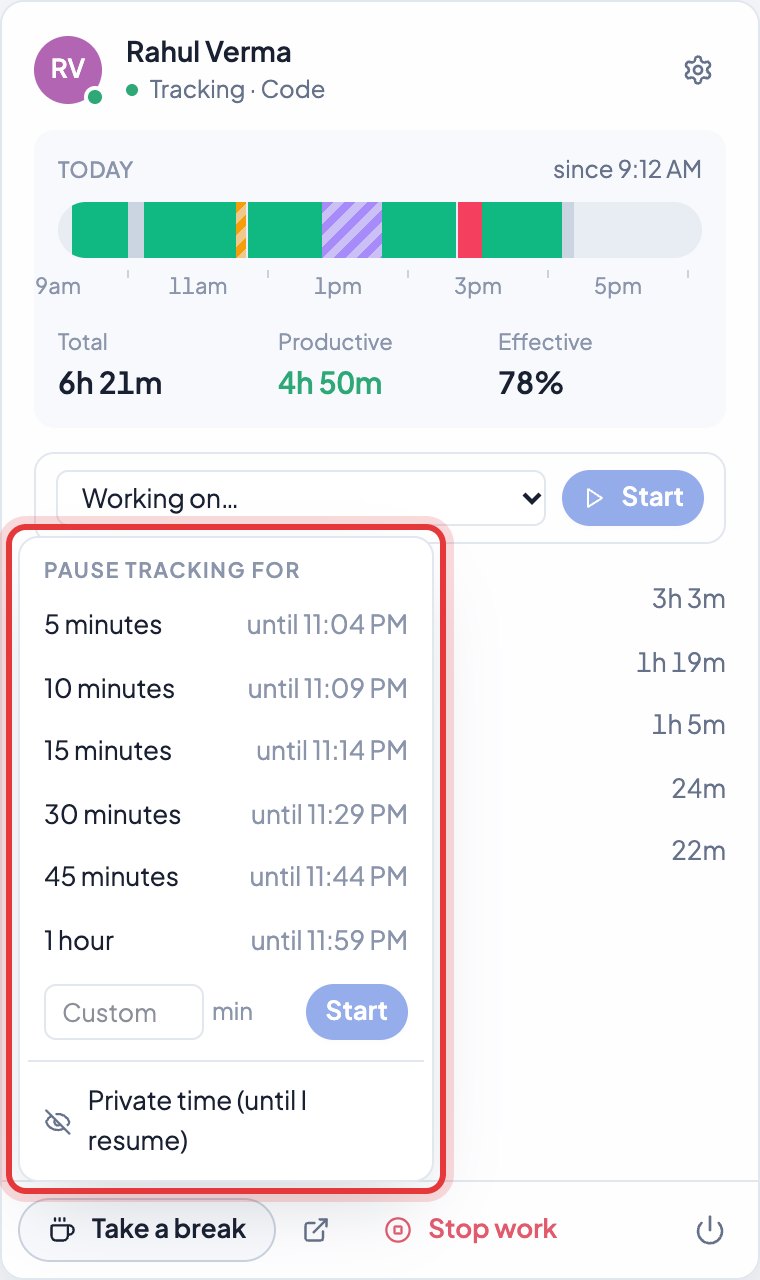
Click Take a break in the app and pick how long. Tracking pauses and starts again by itself when the break ends.
- 1Open the Timerfly app and click Take a break.
- 2Pick 5, 10, 15, 30, 45 minutes or 1 hour — or type your own number of minutes and click Start.
- 3When the time is up, a small window says Break’s over. Click I’m back, or add 5, 10 or 15 minutes.
Back early? Click Resume. The whole break counts as break time, even if the computer slept during it.
Still stuck? We’re happy to help.
Ask usMore on the desktop app
- How do I start and stop my work day?
- Does Timerfly start tracking by itself, or do I press Start?
- Can I pause tracking for something personal?
- When does time count as idle?
- What do Total, Productive and Effective in the app mean?
- What happens at the end of my shift?
- What if the internet goes off?
- How does the app update?
- Does the app start when the computer starts?
- I use two computers. Is my time counted twice?
- How do I sign out of the desktop app, or quit it?
- How do I record time on a project from the app?
New to Timerfly?
Try every feature free for 14 days.